
Navigation Lists bring some pretty cool features to Dynamics GP. On the Polino Roundtable GPUG Special Interest group, we stumbled on another. Someone asked if it was possible to mass retire assets. You can, it’s a menu choice under Financial Transactions. But you have to create a group and groups are a pain to create and they aren’t shared among users so the pain of creating one can’t even be diffused among the user group. This is where Navigation Lists come in. To use Navigation Lists to make this process easier:
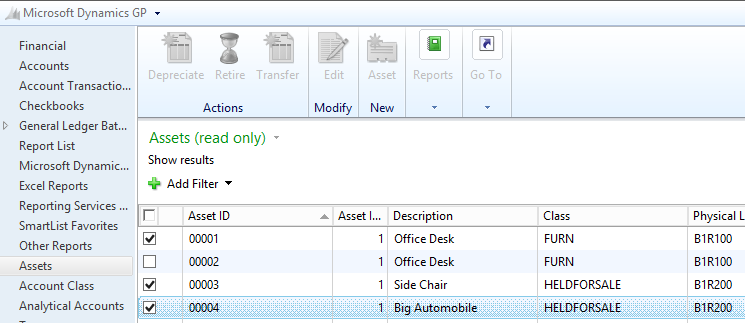
- In GP, select the Financial Area Page and pick the Assets navigation list on the left.
- Check the box next to several assets not next to each other and click the retire icon.
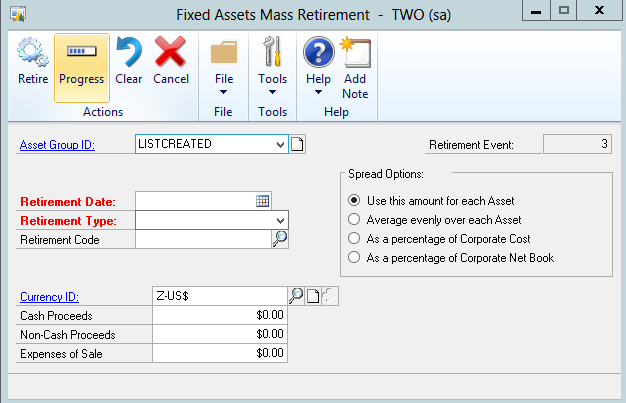
GP auto creates a group on the fly and opens the Mass Retire window for you to complete the retirement selections.
This works for other mass asset options too, like depreciation and transfers. Also, you have all the filter capability of navigation lists to make it easy to pick the right assets.