
GP 2013 adds a new Document Attachment feature. Initially, the feature is geared toward attachments for outgoing transactions and some master records.
You can attach documents to the following master records.
| Master records | |
| Item record | Vendor record |
| Customer record | |
You can attach documents to the following documents and transactions. You also can attach documents to the line items assigned to the documents and transactions.
| Transactions | |
| Sales quote | Drop-ship blanket purchase order |
| Sales order | Shipment receipt |
| Sales fulfillment order | Shipment/Invoice receipt |
| Sales invoice | Purchasing Invoice receipt |
| Sales return | In-transit transfer receipt |
| Sales back order | Purchasing return |
| Standard purchase order | Purchasing return/credit |
| Blanket purchase order | Purchasing inventory |
| Drop-ship purchase order | Purchasing inventory w/Credit |
But first you have to set it up. Setup is found in Microsoft Dynamics GP > Tools > Setup > Company > Document Attachment Setup.
First you need to check the box to activate document attachment. After that you need three pieces of information:
- An attachment location.
- Whether or not you want to delete the temporary file after it’s attached..
- Maximum file size.
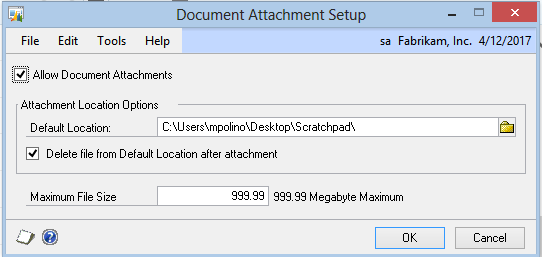
Keep in mind that when emailing attached documents, the receiver may have limits on the size of the file that they can accept. Common size limits tend to be between 5 and 25 megs. That’s the purpose of the Maximum File Size field.
Attachments are stored in the database as BLOBs – Binary Large OBjects.
Next week we’ll look at using Document Attachments.