
With fixed assets, sometimes a decision has been made to sell an asset, but this can take time. Assets held for sale shouldn’t be depreciated and they should be segregated on the balance sheet, but they really shouldn’t be retired until they are sold. Here is one option to deal with that in Microsoft Dynamics GP.
The first time, you setup an option for Assets Held for Sale:
- Setup or identify balance sheet accounts for Assets Held for Sale, Accumulated Depreciation for assets held for sale, gain, loss, proceeds.
- Setup a Fixed Asset Class and an Account Group that is tied to accounts for assets held for sale.
- In the account group setup, leave depreciation expense blank.
To set an asset as held for sale, follow the steps below in order. The order is important.
First, stop the depreciation:
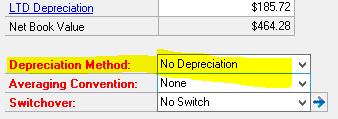
- Open up the Asset Book record (Financial | Cards | Book, Asset ID, Book) and change the Depreciation Method to No Depreciation.
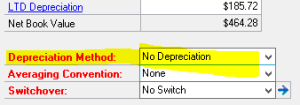
- Save the record and select Yes when asked about changing a depreciation sensitive field.
- Select Recalculate when asked about Reset options.
This stops the depreciation but retains the original life and depreciation amounts.
Second, change the asset to “held for sale”:
- Open the Asset General record (Financial | Cards | General, Asset) and change the Class and Account Groups to the new Asset Held for Sale Groups.
- Save the record.
- If GP asks about propagating the change to the various books DO NOT CHECK the propagate boxes. You’ve already fixed that by changing the book record first. If GP generates an error that the Book/Class record is missing that’s OK too. You don’t want to roll this down.
Changing the General Card second and no propagating the record gives you better control over what changes since you controlled that above when changing the book.
Finally, transfer the existing amounts for cost and accumulated depreciation to assets held for sale.
- Start a transfer transaction (Financial | Transactions | Transfer) and pick the asset to be held for sale.
- Click the blue arrow (expansion button) next to G/L Accounts and note the Depreciation Expense account in use.
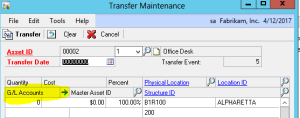
- Select the Account Group created for Assets Held for Sale. Add back the Depreciation Expense account noted above. We don’t want to move depreciation expense.
- Click Transfer to complete the transfer.
This moves cost and accumulated depreciation to the Asset Held for Sale accounts but leaves depreciation expense in the original account.
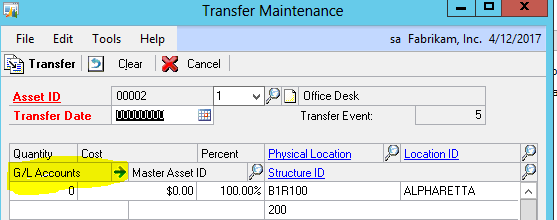
The net result is that the asset, at net book value, is now in an asset class designated as held for sale and separated on the balance sheet. Ongoing depreciation has been suspended, but previous depreciation expense is in its original location.