
The GP Team has really built a nice first release of Workflow in R2. My only disappointment was that the approval email didn’t have line item detail. It’s tough approve a Requisition or a P.O. when you only know what the total is. Fortunately, the team included the ability to add it, it just didn’t make it into the default. Here is how you add line item detail to a workflow email.
1) Administration>Setup>Company>Workflow>Email Message Setup
2) Enter your network password if prompted
3) Select a message ID. I’ve picked the default Requisition named: WF Assign POREQ Approval
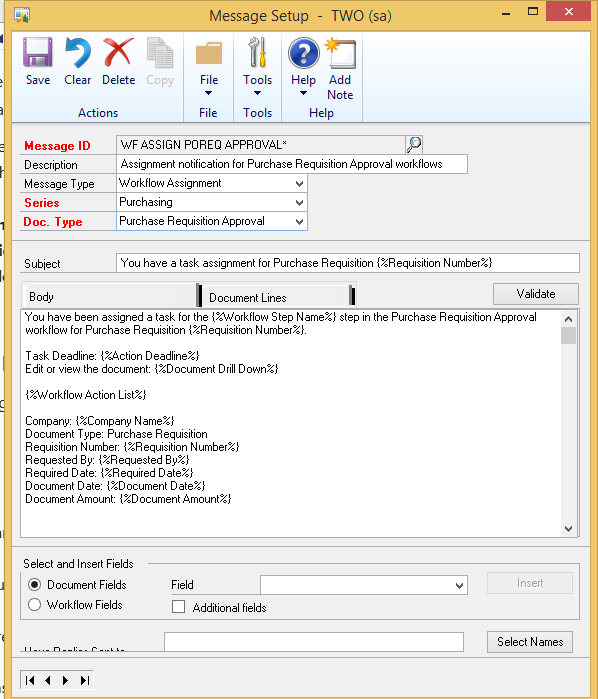
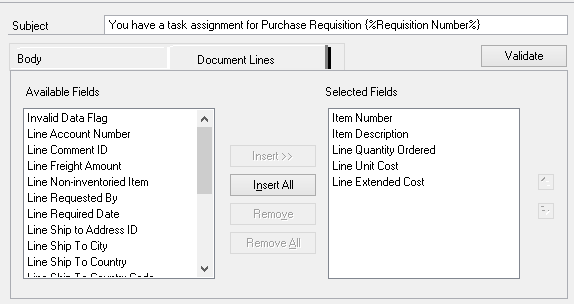
4) Click the Document Lines tab and add the fields you want from the box on the left to the box on the right.
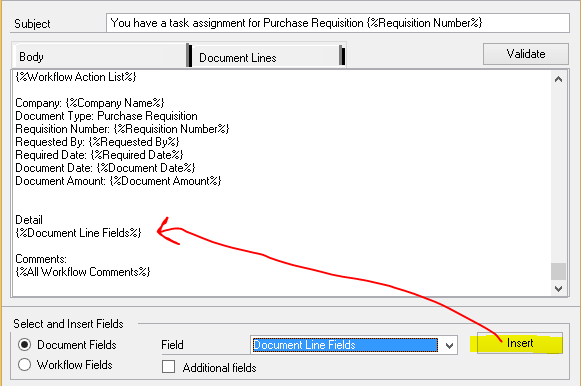
5) Back on the Body tab, place your cursor where the details lines need to go.
6) In the bottom section pick Document Fields, Select Document Line Fields and hit insert. This insert a placeholder for the document lines that will add whatever detail fields were selected in step 4 above.
7) Click Save to finish.
Now when the approval email goes out, it will look similar to this:
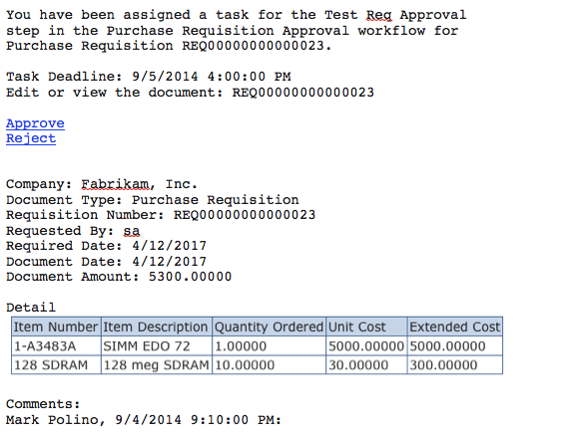
For most folks, this is going to be enough info to decide whether or not approve a transaction and having that detail in the email significantly reduces the friction around approvals.