
Alright, it’s time to look at one of the most anticipated new features of GP 2013 R2, copying and pasting from Microsoft Excel to the GP GL.
The process is straight forward. You need the Excel sheet in a specific order:
Description, Account, Debit, Credit.
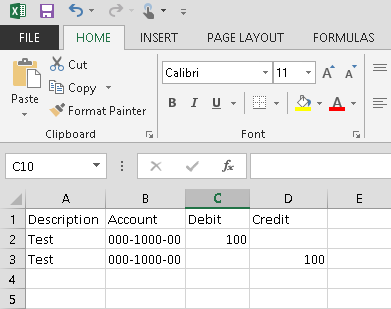
If you don’t have a description, that column can be blank but it needs to be there.
Use the cursor to select only the data, not any headers, and copy the data (Home>Copy, Right Click + Copy, CTRL+C).
In GP, start a GL transaction (Financial>Transactions>Financial>General)
Click the big Paste button on the ribbon, next to copy. The data will be pasted in.
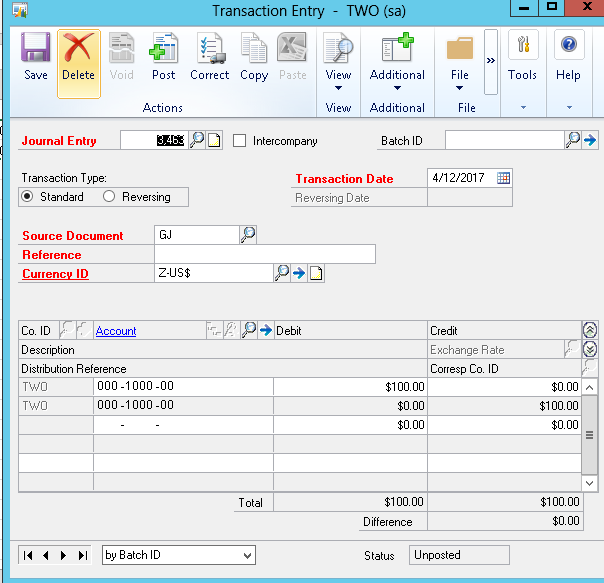
You still have to fill out the rest of the information, Date, Batch, Reference, etc. Copying and pasting only works one transaction at a time, but it works.